How to publish a Flutter app to TestFlight without a Mac
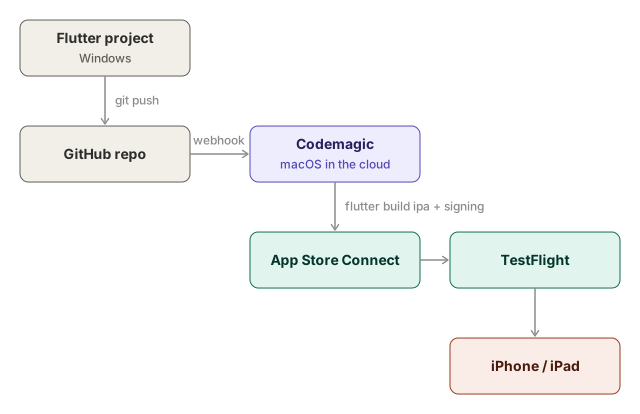
Your Flutter app runs on Android and you want to test it on an iPhone or iPad too, but you work on Windows and don't own a Mac. That doesn't have to stop you. In this guide you build and sign the iOS version in the cloud with Codemagic, upload it through App Store Connect to TestFlight and install it on your own device. All without a Mac.
I wrote these steps down while publishing a real app (October 2026), including the pitfalls I
actually ran into. Replace the example values (My App, com.yourdomain.myApp, src/my_app, …)
with the ones from your own project.
Lees dit artikel in het Nederlands: Flutter-app naar TestFlight zonder Mac (stap voor stap).
Publishing the Android version too? Read How to publish a Flutter app to Google Play with GitHub Actions.
Legend: 💶 = costs money · ⏳ = waiting time · ⚠️ = pitfall we actually ran into
Contents
- Overview and requirements
- Decisions up front
- Apple Developer account
- Preparing the Flutter project
- AdMob for iOS (only if the app shows ads)
- Codemagic: first build without signing
- App Store Connect: API key, bundle ID and app record
- Code signing: certificate and provisioning profile
- Codemagic: signed build to TestFlight
- Building automatically on a release tag
- TestFlight: adding testers and installing
- Troubleshooting
- Quick checklist
0. Overview and requirements
| What | Why | Cost |
|---|---|---|
| Apple ID with two-factor authentication | Required for the Developer account | free |
| Apple Developer Program | Signing, TestFlight, App Store | 💶 €99/year |
| Codemagic account | macOS build machine in the cloud | free tier (500 min/month) |
| GitHub repo with the Flutter project | Source for Codemagic | free |
| iPhone or iPad | Testing through the TestFlight app | — |
| Public privacy policy URL | Required in App Store Connect and in the app | — |
Total lead time the first time: about 2–4 days, mostly ⏳ waiting on Apple (account activation, DSA verification). The actual work takes half a day.
1. Decisions up front
Settle these before you start; some of them can't be changed later.
| Decision | Example | Note |
|---|---|---|
| Bundle ID | com.yourdomain.myApp |
⚠️ No underscores on iOS (Android allows them). Can't be changed after the first upload. Use your domain in reverse. |
| App name (App Store) | My App |
Max. 30 characters, must be unique in the App Store. |
| Account type | Individual | Organization requires a D-U-N-S number and takes longer. |
| Devices | iPhone + iPad | iPad means extra screenshots and layout checks. |
| Orientation | iPhone portrait only, iPad all | ⚠️ iPad requires all 4 orientations or UIRequiresFullScreen. |
| SKU | myapp-ios |
Internal code, only visible to you. |
| Privacy policy URL | https://…/privacy/ |
Also add it as a link inside the app (Apple guideline 5.1.1). |
2. Apple Developer account
2.1 Preparing your Apple ID
- On the iPhone: Settings → [your name] → Sign-In & Security → turn on Two-Factor Authentication.
2.2 Enrolling 💶 ⏳
- Install the Apple Developer app on the iPhone (easiest route: payment through the App Store, identity check with your ID card). Alternative: https://developer.apple.com/programs/enroll/.
- Choose Individual, pay €99.
- ⏳ Wait for the confirmation email ("Thank you for joining the Apple Developer Program"), usually 24–48 hours.
Tip: steps 3 and 5 (preparing the project, unsigned build) can already be done while you wait.
2.3 Agreements in App Store Connect
- Go to App Store Connect → Business.
- Free Apps Agreement: becomes active once you accept the terms. Status must be Active.
- Paid Apps Agreement: only needed for paid apps or in-app purchases. Ad revenue goes through AdMob, so for a free app with ads this can stay on New.
2.4 EU Digital Services Act (DSA) ⏳
Required to publish in the EU (TestFlight for internal testers already works without it).
- Business → Compliance → Digital Services Act.
- Choose Trader if you earn any income (ads count too). ⚠️ Your name, address, phone number and email are then shown publicly in the App Store.
- Apple asks for two documents (PDF/JPEG/PNG, max. 10 MB):
| Document | What works (Belgium) | Where |
|---|---|---|
| Name Identification Document (business or legal document with your name) | Extract from the KBO (Crossroads Bank for Enterprises) / certificate of registration | KBO Public Search or your business counter |
| Address Identification Document | KBO extract (if the address matches), certificate of residence (attest van woonst), recent energy/internet bill, bank statement | Certificate of residence: Mijn Burgerprofiel or Mijn Dossier |
Outside Belgium, use the equivalent from your own business register and municipality.
- ⚠️ Name and address must match exactly what you entered at Apple.
- On a bill or bank statement you may black out amounts; not your name, address and date.
- The status becomes In Review; ⏳ a few days. You can carry on in the meantime.
3. Preparing the Flutter project
Everything happens in the ios/ folder of the Flutter project (in a monorepo e.g. src/<app>/ios/).
This can all be done on Windows.
3.1 Bundle ID and minimum iOS version
In ios/Runner.xcodeproj/project.pbxproj (find and replace all):
PRODUCT_BUNDLE_IDENTIFIER = com.example.myApp;             → com.yourdomain.myApp;
PRODUCT_BUNDLE_IDENTIFIER = com.example.myApp.RunnerTests; → com.yourdomain.myApp.RunnerTests;
IPHONEOS_DEPLOYMENT_TARGET = 12.0;                         → 13.0
If ios/Flutter/AppFrameworkInfo.plist contains a MinimumOSVersion, set it to 13.0 as well.
3.2 ios/Runner/Info.plist
Change or add inside <dict>:
<!-- Name below the icon on the home screen -->
<key>CFBundleDisplayName</key>
<string>My App</string>
<!-- Short internal name, max. 15 characters -->
<key>CFBundleName</key>
<string>My App</string>

<!-- No custom encryption: Apple won't ask about it on every upload -->
<key>ITSAppUsesNonExemptEncryption</key>
<false/>

<!-- iPhone: portrait only -->
<key>UISupportedInterfaceOrientations</key>
<array>
    <string>UIInterfaceOrientationPortrait</string>
</array>
<!-- iPad: all four (required for split view), keep the default list -->
If the app shows ads, also see step 4
for GADApplicationIdentifier, SKAdNetworkItems and NSUserTrackingUsageDescription.
3.3 App icons
⚠️ The App Store rejects icons with transparency. Use a 1024×1024 PNG without an alpha channel.
-
flutter pub add --dev flutter_launcher_icons -
Create
flutter_launcher_icons.yamlnext topubspec.yaml:flutter_launcher_icons: android: false # Android icons already exist ios: true image_path: "assets/icon/app_icon.png" # or the existing Android icon remove_alpha_ios: true -
Generate:
dart run flutter_launcher_icons
3.4 Splash screen
If you use flutter_native_splash:
dart run flutter_native_splash:create⚠️ This also regenerates the Android and web files. If you only want to update iOS, revert those
changes (git checkout -- android web) or set android: false / web: false in the config.
3.5 Inside the app
-
Link to the privacy policy (e.g. on the "About" screen or in the settings). Apple requires this.
-
Wide screens (iPad): limit the content to a readable width, e.g.:
body: Center(
  child: ConstrainedBox(
    constraints: const BoxConstraints(maxWidth: 700),
    child: page,
  ),
),
3.6 Checking
dart format --set-exit-if-changed lib test
flutter analyze
flutter test
4. AdMob for iOS (only if the app shows ads)
4.1 Creating the app in AdMob
- AdMob → Apps → Add app.
- Platform iOS.
- ⚠️ Question "Is the app listed on a supported app store?" → No. (If you choose Yes, you have to search for the app in the App Store, and it doesn't exist there yet.)
- Enter the name → Add app → note the app ID
ca-app-pub-XXXXXXXXXXXXXXXX~XXXXXXXXXX. - Ad units → Add ad unit → Banner → note the ID
ca-app-pub-XXXXXXXXXXXXXXXX/XXXXXXXXXX. - After publishing in the App Store: App settings → Add app store details to link them. Until then AdMob shows few or no real ads (that's normal).
4.2 Privacy & messaging
In AdMob → Privacy & messaging, for the iOS app:
- Create and publish a GDPR message (EEA/UK/CH).
- Create an IDFA explainer message (shown before Apple's ATT popup).
4.3 Info.plist
<key>GADApplicationIdentifier</key>
<string>ca-app-pub-XXXXXXXXXXXXXXXX~XXXXXXXXXX</string>

<!-- Text in the ATT popup ("App Tracking Transparency") -->
<key>NSUserTrackingUsageDescription</key>
<string>This identifier will be used to deliver personalized ads to you.</string>

<!-- At least Google's own network ID -->
<key>SKAdNetworkItems</key>
<array>
    <dict>
        <key>SKAdNetworkIdentifier</key>
        <string>cstr6suwn9.skadnetwork</string>
    </dict>
</array>- ⚠️ Without
GADApplicationIdentifierthe app crashes on launch. If you don't have your own app ID yet, temporarily use Google's test app IDca-app-pub-3940256099942544~1458002511. - The full SKAdNetwork list (third-party buyers) is in the Google Mobile Ads iOS documentation.
4.4 Test IDs in debug
Always use Google's test banner IDs in debug and profile builds; real IDs only in release:
static String get bannerAdUnitId {
  if (kReleaseMode) {
    return Platform.isAndroid ? _androidBannerAdUnitId : _iosBannerAdUnitId;
  }
  return Platform.isAndroid
      ? 'ca-app-pub-3940256099942544/6300978111'   // Android test banner
      : 'ca-app-pub-3940256099942544/2934735716';  // iOS test banner
}
⚠️ TestFlight installs a release build → real ads. Never click your own ads.
4.5 Consent (GDPR) and ATT
Use the UMP SDK (included in google_mobile_ads): request consent after the first frame and only
start Mobile Ads once ConsentInformation.instance.canRequestAds() is true. With an IDFA message in
AdMob, UMP then shows the ATT popup by itself; no extra code needed.
5. Codemagic: first build without signing
Proves that the app compiles for iOS. Can be done before the Developer account is active.
5.1 Account and repo
- Go to https://codemagic.io → Sign up with GitHub.
- Add application → pick the GitHub repo → project type Flutter App (via codemagic.yaml).
5.2 codemagic.yaml in the root of the repo
workflows:
  ios-unsigned:
    name: iOS unsigned build
    instance_type: mac_mini_m2
    max_build_duration: 60
    working_directory: src/my_app          # leave out if the Flutter project is in the root
    environment:
      flutter: 3.47.3                       # same version as locally/CI
      xcode: latest
      cocoapods: default
    cache:
      cache_paths:
        - $HOME/.pub-cache
        - $HOME/Library/Caches/CocoaPods
    scripts:
      - name: Get packages
        script: flutter pub get
      - name: Run tests
        script: flutter test
      - name: Build iOS (no code signing)
        script: flutter build ios --release --no-codesign
    artifacts:
      - build/ios/iphoneos/*.app            # relative to working_directory
- /tmp/xcodebuild_logs/*.log- You don't need a
Podfilein the repo: Flutter creates it during the build on macOS. - Paths under
artifactsare relative toworking_directory.
5.3 Starting
- Commit and push
codemagic.yaml. - Codemagic → app → Start new build → workflow iOS unsigned build → branch → Start.
- Result: all steps green and a
Runner.app.zipartifact. You can't install this file (it isn't signed); it only proves the build works.
6. App Store Connect: API key, bundle ID and app record
From here on you need an active Developer account.
6.1 App Store Connect API key (once per account, reusable for all apps)
- App Store Connect → Users and Access → Integrations → App Store Connect API → Team Keys. (First time: Request Access and accept the terms.)
- Click + → Name
Codemagic→ Access App Manager → Generate. - Note the Issuer ID (above the list) and the Key ID.
- Download API Key →
.p8file. ⚠️ This works only once; store it in your password manager right away.
6.2 API key in Codemagic
- Codemagic → Settings (Personal Account) or Team settings → Integrations → Developer Portal → Connect / Manage keys.
- App Store Connect API key name: e.g.
Codemagic← this name goes intocodemagic.yaml. - Fill in the Issuer ID, Key ID and the
.p8file → Save. Green dot = it works.
The Issuer ID and Key ID aren't secrets. The
.p8file is: never put it in git or a chat.
6.3 Registering the bundle ID
- Certificates, Identifiers & Profiles → Identifiers → +.
- App IDs → App → Continue.
- Description: app name (no special characters). Bundle ID: Explicit → your bundle ID.
- Capabilities: don't tick anything unless the app really uses it (push, Sign in with Apple, …). AdMob and ATT need no capability. You can always add them later.
- Continue → Register.
6.4 Creating the app record
- App Store Connect → Apps → + → New App.
- Fill in:
- Platforms: iOS
- Name: the app name (⚠️ must be unique in the App Store)
- Primary Language: e.g. English (U.S.)
- Bundle ID: pick the registered ID from the list
- SKU: e.g.
myapp-ios - User Access: Full Access
- Create. Note the app's Apple ID (a number, shown under App Information and in the URL).
- ⚠️ Don't click Add for Review; that's for the App Store submission, not for TestFlight.
7. Code signing: certificate and provisioning profile
This is where we got stuck the longest. Codemagic does create a certificate, but not a provisioning profile. Follow exactly this order.
7.1 Distribution certificate (once per account, reusable)
- Codemagic → Settings / Team settings → codemagic.yaml settings → Code signing identities → iOS certificates.
- Generate certificate → API key
Codemagic→ type Apple Distribution. - ⚠️ Store the displayed
.p12password in your password manager.
Apple only allows a few distribution certificates per account. Reuse this certificate for all your apps; don't create a new one per app.
7.2 Provisioning profile (one per app)
- Certificates, Identifiers & Profiles → Profiles → +.
- Under Distribution: App Store Connect (not iOS App Development, not Ad Hoc) → Continue.
- App ID: the app's bundle ID → Continue.
- Certificate: the Apple Distribution certificate from 7.1 → Continue.
- Name: e.g.
My App App Store→ Generate. No need to download it.
7.3 Fetching the profile in Codemagic
- Codemagic → Code signing identities → iOS provisioning profiles → Fetch profiles.
- Tick the profile → Download selected.
- Check the list: type App Store, the right bundle ID, and a check mark next to the certificate.
⚠️ "No profiles to add" when fetching means the profile doesn't exist at Apple yet → do 7.2.
8. Codemagic: signed build to TestFlight
8.1 Adding the workflow to codemagic.yaml
  ios-release:
    name: iOS release to TestFlight
    instance_type: mac_mini_m2
    max_build_duration: 60
    working_directory: src/my_app
    integrations:
      app_store_connect: Codemagic          # name from step 6.2
    environment:
      flutter: 3.47.3
      xcode: latest
      cocoapods: default
      ios_signing:
        distribution_type: app_store
        bundle_identifier: com.yourdomain.myApp
    triggering:                             # see step 9
      events:
        - tag
      tag_patterns:
        - pattern: "v*"
          include: true
    cache:
      cache_paths:
        - $HOME/.pub-cache
        - $HOME/Library/Caches/CocoaPods
    scripts:
      - name: Apply code signing settings to the Xcode project
        script: xcode-project use-profiles
      - name: Get packages
        script: flutter pub get
      - name: Run tests
        script: flutter test
      - name: Build signed IPA
        script: flutter build ipa --release --export-options-plist=/Users/builder/export_options.plist
    artifacts:
      - build/ios/ipa/*.ipa
      - /tmp/xcodebuild_logs/*.log
    publishing:
      app_store_connect:
        auth: integration
        submit_to_testflight: false         # true = also to external testers (with Beta App Review)
8.2 Version and build number
- They come from
pubspec.yaml:version: 1.2.0+12→ version 1.2.0, build number 12. - ⚠️ Apple rejects an upload with a build number that already exists for that version. Increase the build number for every new upload, by hand or automatically with a release tool such as release-please.
- A failed build that didn't upload anything can be restarted with the same build number.
8.3 Starting and following up
- Start new build → workflow iOS release to TestFlight → pick a tag (e.g.
v1.2.0) or branch → Start. Duration: about 5–10 minutes. - After Publishing: App Store Connect → TestFlight → Builds. Status Processing → ⏳ 15–30 minutes → Ready to Test. You'll get an email from Apple.
9. Building automatically on a release tag
The triggering section only works if Codemagic has a webhook in the GitHub repo.
- Codemagic → app → Webhooks → Update webhook (or Create webhook). Give Codemagic access to the repo if GitHub asks for it.
- Check in GitHub: Settings → Webhooks → URL
https://api.codemagic.io/hooks/…with a green check mark on the last delivery. - The next
v*tag starts the build by itself. ⚠️ A tag that already existed before the webhook triggers nothing; build that one by hand (step 8.3). - Using release-please? The tag is created through the GitHub API. Webhooks to Codemagic still
fire (only GitHub Actions workflows aren't triggered by
GITHUB_TOKEN). Check it on the first release.
10. TestFlight: adding testers and installing
10.1 Internal testers (max. 100, no review)
They must be users in your App Store Connect team.
- Invite someone: Users and Access → People → + → name, email, role Marketing or Customer Support (not Admin), Access to Apps → only this app.
- Once accepted: app → TestFlight → Internal Testing → + (group, e.g.
Family) → add testers. - Keep Automatic Distribution on: every new build then goes straight to the group.
- This can be done before the first build.
10.2 External testers (max. 10,000, with Beta App Review)
No access to your account needed; ideal for friends and family.
- First fill in TestFlight → Test Information: description, feedback email, contact details, privacy policy URL.
- The External Testing section only appears after the first build. Create a group then.
- Add testers by email or through a Public Link (with an optional limit).
- Add the build to the group → ⏳ Beta App Review (first build per version, usually < 1 day).
- Automatically from Codemagic:
submit_to_testflight: trueandbeta_groups: [Name of the group]underpublishing.app_store_connect.
10.3 Installing on the device
- Install TestFlight from the App Store.
- Sign in with the Apple ID that was invited as a tester.
- Open the invitation email or the public link → Install.
- A TestFlight build stays usable for 90 days.
10.4 Test checklist
- [ ] Icon and splash screen
- [ ] First launch (onboarding), and not again afterwards
- [ ] Core functionality (same results as Android)
- [ ] Settings are kept after a restart
- [ ] GDPR consent, then the ATT popup
- [ ] Ads (or none, as long as AdMob isn't linked)
- [ ] Notch / home indicator / safe area
- [ ] Light and dark theme
- [ ] All links (mail, website, privacy policy)
- [ ] iPad: layout on a wide screen, rotation, split view
11. Troubleshooting
| Message / symptom | Cause | Fix |
|---|---|---|
| AdMob: you can only search for the iOS app in the App Store | Wrong answer to "is the app listed on a store?" | Back → choose No |
| App crashes right at launch | GADApplicationIdentifier missing from Info.plist |
Add it (a test ID is fine for now) |
No matching profiles found for bundle identifier "…" and distribution type "app_store" |
No App Store profile in Codemagic | Steps 7.2 and 7.3 |
| Fetch profiles: No profiles to add | Profile doesn't exist at Apple yet | Step 7.2 |
| Profile found, but certificate missing | Profile linked to a different certificate | Edit the profile at Apple → choose the certificate from 7.1 → fetch again |
| Tag created, but no build in Codemagic | No webhook | Step 9; build the existing tag by hand |
| Upload rejected: build already exists | Build number already used | Increase the build number in pubspec.yaml |
| App Store Connect: icon rejected | Transparency in the icon | remove_alpha_ios: true and regenerate |
| DSA asks for a "Name Identification Document" | Trader verification | Business register extract, e.g. KBO in Belgium (step 2.4) |
| No ads in TestFlight | AdMob app not yet linked to the App Store | Normal; link it after publishing (step 4.1) |
12. Quick checklist
Once per Apple account (skip for your next app):
- [ ] Apple ID with two-factor authentication
- [ ] Apple Developer Program 💶 ⏳
- [ ] Free Apps Agreement active
- [ ] DSA trader status ⏳
- [ ] App Store Connect API key +
.p8stored safely - [ ] API key in Codemagic
- [ ] Apple Distribution certificate in Codemagic
Per app:
- [ ] Bundle ID, name, SKU, privacy policy URL chosen
- [ ]
project.pbxproj: bundle ID + iOS 13.0 - [ ]
Info.plist: names, encryption, orientation (+ AdMob keys) - [ ] Icons without transparency, splash screen
- [ ] Privacy link in the app
- [ ] (AdMob) iOS app, banner ID, GDPR and IDFA message
- [ ]
codemagic.yaml:ios-unsigned→ green build - [ ] Bundle ID registered at Apple
- [ ] App record in App Store Connect
- [ ] App Store provisioning profile at Apple + fetched in Codemagic
- [ ]
codemagic.yaml:ios-release→ green build - [ ] Webhook in Codemagic
- [ ] TestFlight group + testers → install and test
Questions, or did you get stuck somewhere else? Let me know and I'll add it to this guide.